How to Fix ISO Creation Failed on Windows
When a folder-to-ISO job fails, check the simple causes first: names, paths, disk space, output folders, ISO settings, locked files, and logs.
An ISO creation failure on Windows usually has a practical cause. The source folder may contain names that do not fit the selected ISO file system, the output drive may not have enough space, a destination folder may be mixed with the source files, or another program may be holding files open during the run.
The fastest fix is not to rerun the same job blindly. Pause, keep the failed output separate, read the log or report, and check the inputs in a predictable order. That way you solve the root problem instead of creating another partial ISO file with the same mistake.
Short answer: if ISO creation failed, check disk space, output location, invalid characters, long paths, locked files, and ISO settings before rerunning. For batch jobs, run the corrected attempt into a new output folder so failed and final ISO files do not mix.
Start with the failure point
First identify when the job failed. A failure before processing usually points to source selection, destination permissions, or settings. A failure near the end often points to disk space, a large folder, an overwrite, or a file that changed while the ISO was being built.
If the tool provides a log, report, or visible progress message, keep it. Batch ISO Creator includes progress tracking, logs, operation reports, and error handling, so use those artifacts as the first evidence. In batch work, one failed folder can be different from the rest, and the report helps you find that folder without guessing.
| Symptom | Likely cause | First check |
|---|---|---|
| Fails immediately | Bad source path, blocked destination, or invalid setup. | Confirm the source folder exists and the output folder is writable. |
| Fails on one folder in a batch | Name, path, or locked-file issue in that folder. | Inspect that folder separately before rerunning the full batch. |
| Fails near completion | Disk space, overwrite, or output drive problem. | Check free space and use a fresh output folder. |
| Created ISO is missing files | The source changed, files were locked, or the wrong folder was selected. | Compare source counts and review the operation report. |
Check disk space and output location
ISO files can be large because the image preserves the folder contents as a single deliverable file. If the source folders total 60 GB, the output drive needs enough room for the generated ISO files and a practical margin. A nearly full external drive can fail late, which is the most frustrating point in a long batch run.
Also make sure the output folder is not inside the source folder. If generated ISO files sit inside the same parent folder that is being scanned, the workflow becomes harder to reason about and future runs can include the wrong files. Use a sibling folder such as source-folders and iso-output, or one dated job folder like iso-output-2026-06-30.
Fix invalid characters before the next run
Windows file names cannot contain characters such as <, >, :, ", /, \, |, ?, and *. ISO labels and cross-platform archive names can be stricter than normal folder browsing, especially when a job needs to remain compatible with older systems.
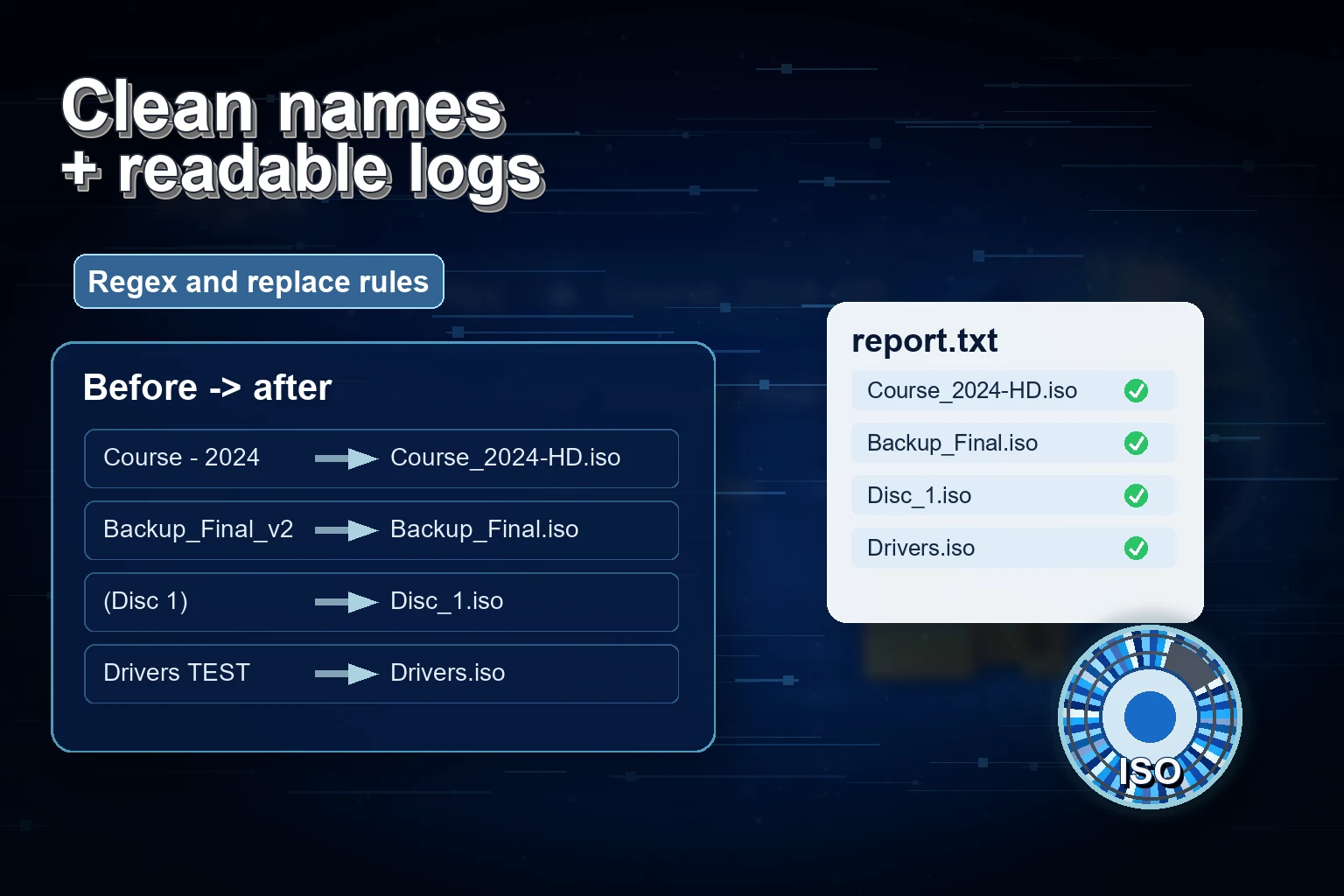
If the failed folder contains names copied from tickets, downloads, release notes, or client exports, clean those names before rebuilding. Batch ISO Creator supports rename rules for folders and ISO files, including case conversion, pattern support, prefix, suffix, insert, delete, and serialization. For a deeper naming pass, use the guide to fix invalid characters in ISO file names.
Review long paths and ISO file system settings
Long nested paths are another common failure source. A file name may look reasonable by itself, but the full path can become too long after folders, version numbers, dates, and language names are combined. This is why deeply nested training materials, driver folders, and software release packages deserve a path-length check before the ISO run.
Batch ISO Creator is built on mkisofs and supports ISO 9660, Joliet, Rock Ridge, and Joliet Long. If the job contains long Windows names, review the selected ISO settings and decide whether Joliet Long belongs in that run. For background, see the guides on file name too long ISO errors, Joliet Long for Windows ISO file names, and mkisofs folder-to-ISO workflows.
Look for locked or changing files
ISO creation expects the source files to stay stable while the image is being built. If a file is open in another program, being downloaded, syncing, or modified during the run, the image process may fail or produce output that is hard to trust. This is especially common when the source sits in Downloads, Desktop, a sync folder, or an active project workspace.
Before rerunning, close editors, installers, archive tools, and preview windows that may be using the source. If the source folder is still receiving files, copy it to a quiet staging folder first. For repeatable work, use a staging path that contains only the final files intended for the ISO.
Rerun only the corrected scope
For a batch job, do not rerun everything until you know whether the failure affected one folder or the whole setup. If one folder failed because of a bad path, test that folder in Folder Mode first. Once it succeeds, return to Batch Mode for the full run.
Run the corrected attempt into a new output folder. A clean second folder makes it obvious which ISO files belong to the final delivery and which files came from the failed attempt. It also keeps reports and logs easier to compare.
Use reports to validate the final output
After the corrected run, compare the expected source folders with the generated ISO files. Sort by name, size, and modified time. Mount one or two representative ISO files and confirm that the content structure matches the source. If the output set will be reused later, move it into ISO Library after the batch is reviewed.
Keep the report with the job if the ISO files are part of a client handoff, software release archive, training lab package, or internal backup. The report gives you a record of what was processed and makes future troubleshooting much easier.
Troubleshoot Batch ISO Jobs Faster
Use Batch ISO Creator to create ISO files from folders on Windows, apply rename rules, choose ISO settings, and review batch runs with logs and operation reports.
FAQ
Why did ISO creation fail on Windows?
Common causes include invalid characters, very long paths, insufficient disk space, saving output inside the source folder, locked files, and ISO settings that do not match the file names in the source folders.
Should I rerun a failed batch ISO job into the same folder?
No. Use a fresh output folder for the corrected run. Keeping failed and corrected output separate makes it easier to review logs, compare file counts, and avoid delivering partial ISO files.
Can Batch ISO Creator help troubleshoot failed ISO jobs?
Yes. Batch ISO Creator supports Batch Mode, Folder Mode, rename rules, progress tracking, logs, operation reports, ISO settings, and error handling for Windows folder-to-ISO workflows.