How to Fix Invalid Characters in ISO File Names on Windows
Clean unsafe characters, labels, and folder names before folder-to-ISO jobs so Windows archives are easier to create, mount, and review.
Invalid characters in ISO file names are small details that can stop a folder-to-ISO workflow at the worst moment. A folder may look normal in File Explorer, but the final ISO job still depends on a clean output file name, a readable volume label, and portable names inside the image.
The safest approach is simple: clean the source folder names, define a Windows-safe ISO naming pattern, keep labels short, and test one representative folder before you process the full batch. This matters even more when you are creating one ISO per subfolder from a large parent directory.
Short answer: avoid Windows-reserved filename characters such as \ / : * ? " < > |, remove decorative punctuation from output names, keep volume labels simple, and use rename rules before creating the ISO files.
Why invalid characters show up during ISO work
ISO creation combines several naming layers. The source folder has a name. The generated ISO file has a name. The mounted image can display a volume label. Logs and reports need to explain what was processed. If those layers are treated as one free-form text field, unsafe characters and inconsistent punctuation slip in quickly.
Windows already blocks some reserved characters in normal filenames. But ISO work adds a portability goal: the archive may be mounted later, copied to another workstation, opened by another ISO tool, or reviewed from a report. A technically accepted name can still be a poor archive name if it is too clever, too long, or difficult to search.
| Problem | Why it hurts ISO output | Safer pattern |
|---|---|---|
Client: Release 3 | The colon is reserved in Windows file names. | client-release-3 |
Build <Final> | Angle brackets are unsafe and make reports noisy. | build-final |
Training / Lab | A slash can be interpreted as a path separator. | training-lab |
Driver Pack? | Question marks are reserved and unclear in final deliverables. | driver-pack |
Clean the source folders first
Start with the folders that will become ISO files. Remove reserved characters, repeated status words, copied suffixes, and punctuation that only made sense in a chat message or ticket title. If the folder set came from different people, normalize the pattern before you run the job.
- Keep one parent folder. Put the source folders in one clean location, separate from the final ISO output folder.
- Use plain separators. Hyphens and underscores are easier to scan than punctuation-heavy names.
- Keep version and date fields predictable. Pick one date style, such as
2026-06, and use it consistently. - Remove comments from names. Words such as
final-final,old, orcopyshould be fixed before output.
Use a portable ISO file name pattern
A good ISO file name should be boring in the best way. It should sort well, survive copy-and-paste, and tell someone what it is without needing the original folder open. For Windows folder archives, a pattern like client-project-version, training-lab-2026-06, or driver-pack-model-a-v3 is usually enough.
Do not force every detail into the file name. The final ISO can be supported by the folder contents, a README, and the operation report. The file name should identify the archive, not replace all documentation.
Keep volume labels simpler than file names
The ISO file name and the mounted volume label do not need to match exactly. In fact, the label should often be shorter. When the image is mounted, the label is a quick recognition aid, not a full project title.
If maximum compatibility matters, keep labels short, uppercase or title case, and free from decorative punctuation. Batch ISO Creator is built on mkisofs and supports ISO 9660, Joliet, and Rock Ridge, so choosing the right ISO options and clean labels together reduces surprises later.
Use rename rules for repeatable cleanup
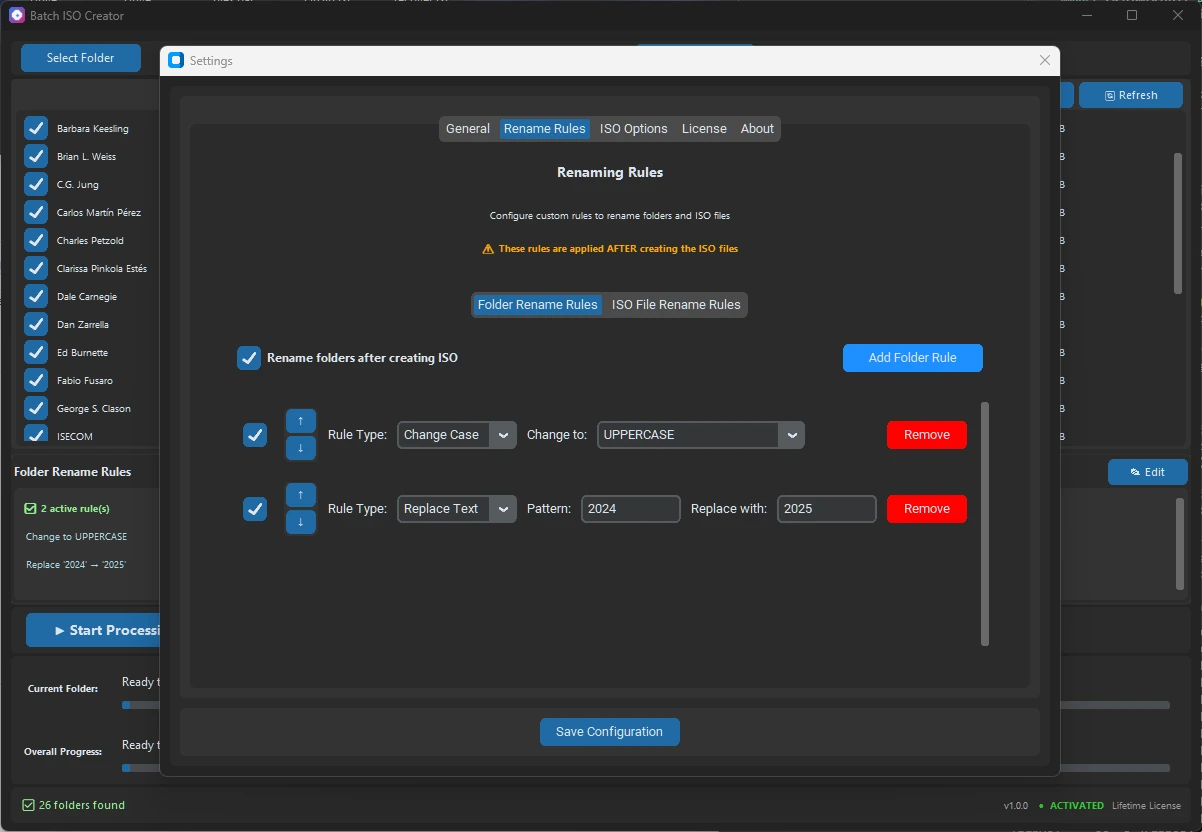
Manual cleanup works for two folders. It does not scale well when a parent directory contains dozens of source folders. Batch ISO Creator can apply renaming rules to folder and ISO names before output is finalized, including case conversion, pattern support, prefix, suffix, insert, delete, and serialization.
Use the smallest rule set that makes the folder set consistent. For example, replace spaces with hyphens, remove bracketed ticket text, add a project prefix, and serialize the final output when order matters. The goal is not to create clever names; the goal is predictable ISO files that can be reviewed later.
| Input issue | Rule idea | Result style |
|---|---|---|
| Mixed case folders | Apply case conversion | client-release |
| Unsafe punctuation | Delete or replace characters | training-lab |
| Missing project context | Add a prefix | acme-driver-pack |
| Ordered deliverables | Add serialization | 001-training-kit |
Run one test before the full batch
Before processing a large folder set, run a representative folder with the same naming pattern, ISO settings, and destination folder. Then mount the ISO, check the visible label, inspect a few nested names, and review the log or report. That small test catches naming issues while the fix is still cheap.
If the test output is readable, run the full batch. If it is not, adjust the rename rules first. Do not wait until dozens of ISO files are generated to decide that the naming pattern is hard to understand.
Where Batch Mode and Folder Mode fit
Use Folder Mode when you want to check one folder closely. Use Batch Mode when a parent folder contains many subfolders and each should become its own ISO file. The naming checklist is the same, but Batch Mode rewards cleanup more because one rule set affects the whole output list.
Clean Names Before Creating ISOs
Use Batch ISO Creator to convert folders to ISO files on Windows, apply rename rules before output, and review results with logs and reports.
FAQ
Which characters should I avoid in Windows ISO file names?
Avoid Windows-reserved filename characters such as backslash, slash, colon, asterisk, question mark, quotation mark, angle brackets, and vertical bar. For portable ISO output, also avoid decorative punctuation that makes names harder to copy or audit.
Can invalid characters break a folder-to-ISO batch?
Yes. A single unsafe folder name, output ISO name, or label can cause a batch job to stop or produce confusing output. Clean names and run a small test before processing a large folder set.
Can Batch ISO Creator clean ISO names before output?
Yes. Batch ISO Creator supports rename rules for folder and ISO names, including case conversion, pattern support, prefix, suffix, insert, delete, and serialization.