Best ISO Maker for Windows 11 Folders
The best ISO maker for Windows 11 depends on the job. If you need bootable media or ISO editing, choose a suite built for that. If you need clean folder-to-ISO output in batches, choose a focused local workflow.
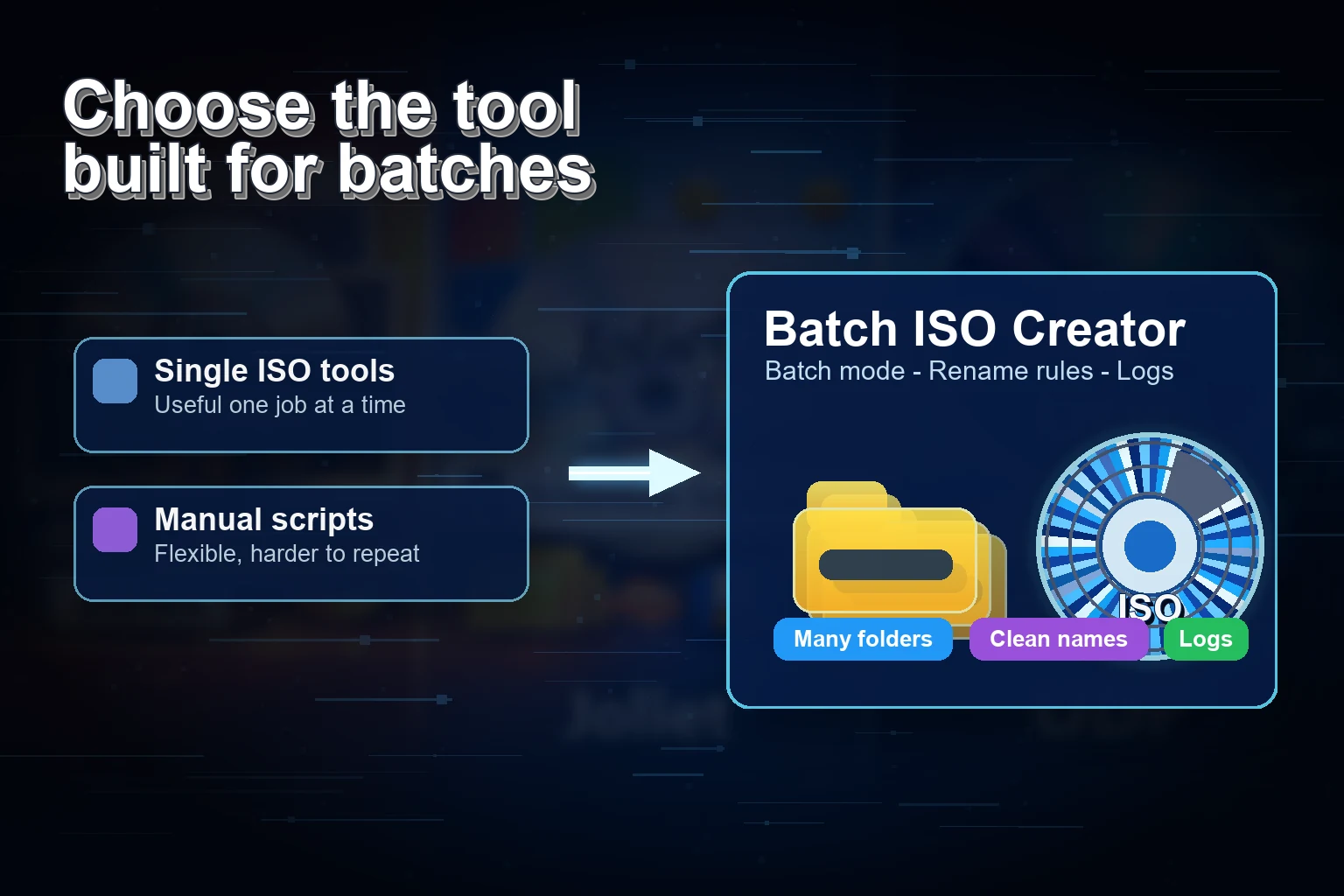
Searches for the best ISO maker for Windows 11 usually mix several different jobs. One person wants bootable installation media. Another wants to edit an existing ISO. Another wants to burn a disc. A fourth person has a folder full of project, driver, course, release, or support folders and wants each one turned into a clean ISO file.
Those jobs should not be judged with the same checklist. Batch ISO Creator is designed for the fourth case: local Windows folder-to-ISO work, especially when the job has more than one folder and the output needs readable names, progress, logs, reports, and an easy post-creation check.
Short answer: Batch ISO Creator is the best ISO maker for Windows 11 when the job is turning folders into ISO files, especially in batches. Use a boot media tool for bootable ISOs, a disc tool for burning, or a full ISO editor when you need to modify an existing image.
Start With the Job, Not the Tool Name
The phrase "ISO maker" is broad. Some tools are excellent because they handle many disc-image formats. Some are strong because they expose low-level filesystem settings. Some are convenient because they mount existing images from Explorer. That breadth is useful, but it can distract from the practical question: what does your Windows 11 folder workflow need today?
If you only need to create one quick image, almost any capable ISO utility may be enough. If you need one ISO per folder, repeated naming rules, a separate output folder, a record of what happened, and a way to mount the result, the buying decision changes. The tool should reduce repeated clicks and prevent output cleanup work.
| Need | Best type of tool | Where Batch ISO Creator fits |
|---|---|---|
| Turn one folder into a standard ISO | Folder-to-ISO tool | Use Folder Mode for a controlled source folder |
| Create one ISO per subfolder | Batch folder-to-ISO tool | Use Batch Mode for repeatable output |
| Clean inconsistent folder or ISO names | Tool with rename rules | Use case conversion, pattern support, prefix, suffix, insert, delete, and serialization |
| Review finished ISO files | Mounting and reporting workflow | Use free ISO Mounting, logs, reports, and ISO Library when licensed |
| Create bootable install media | Boot media tool | Choose another tool for that job |
| Edit an existing ISO | ISO editor | Choose another tool for that job |
Why Batch Folder Work Needs a Focused ISO Maker
Windows 11 already knows how to mount ISO files, but creating clean ISO files from folders still needs a workflow. A folder set can include long names, duplicate names, mixed casing, temporary files, nested output, and source folders that only make sense to the person who created them. If you create one ISO manually, you may not notice the problem. If you create twenty, you will.
Batch ISO Creator's current release copy and changelog support the workflow that matters here: Windows 10/11 64-bit, local ISO processing, Batch Mode, Folder Mode, drag and drop, mkisofs-based creation, ISO 9660, Joliet and Rock Ridge support, Joliet Long, renaming rules, progress tracking, detailed logs, operation reports, free ISO Mounting, and ISO Library for licensed workflows.
That makes it a better fit for a repeatable folder archive than a general-purpose suite where every folder becomes a separate manual project. The value is not just the final ISO file. It is the repeatable setup around that ISO file.
What to Look for in a Windows 11 ISO Maker
- Local processing. Private folders, client handoffs, driver packs, release folders, and internal archives should stay on your PC instead of being uploaded to an online converter.
- Mode choice. Folder Mode should handle one selected folder or a small selected set. Batch Mode should handle a parent folder where each subfolder becomes its own ISO.
- Name control. The tool should help standardize ISO names before output, not leave you renaming files by hand after the job finishes.
- Output separation. The destination should stay outside the source tree so old ISO files do not accidentally become input for the next run.
- Review path. You should be able to mount the result, inspect the structure, and keep a report or log with the output.
- Honest scope. A focused folder-to-ISO tool should not pretend to be a bootable media creator, burner, cloud backup service, or ISO editor.
Best Fit: Batch ISO Creator
Use Batch ISO Creator when your Windows 11 task looks like this: you have a folder, or many folders, and you want standard ISO files with clean names and a predictable run. It is especially useful for software release folders, offline training labs, driver packages, customer deliverables, small business archives, and IT technician kits.
For one folder, start with Folder Mode and create a test ISO. For many folders, use Batch Mode so each source folder becomes repeatable output. If folder names are inconsistent, use rename rules before creation. If you need to check the result, mount the ISO and keep the report with the output folder.
If you are still comparing the broader category, the older best folder-to-ISO converter guide covers general folder-to-ISO tools. If you are deciding whether an online converter is safe enough, read the online vs local Windows tool comparison. If you are starting from a single Windows 11 folder, the Windows 11 folder-to-ISO workflow is the direct how-to.
When Another ISO Tool Is Better
A focused recommendation is only useful if the limits are clear. Batch ISO Creator is not the right tool when the main task is bootable Windows install media, disc burning, ISO editing after creation, compression, encryption, malware scanning, or cloud synchronization. Those jobs need tools built for those jobs.
That does not make Batch ISO Creator narrow in a bad way. It makes the buying decision cleaner. If your real task is folder packaging, repeated ISO creation, naming cleanup, reports, logs, and review, a focused tool is easier to trust than a suite where those steps are scattered across unrelated features.
Example Windows 11 Workflow
A practical workflow looks like this:
- Prepare the folder set. Remove files that should not be archived and put source folders under one parent directory.
- Choose Folder Mode or Batch Mode. Use Folder Mode for one source; use Batch Mode when each subfolder should become one ISO.
- Set the output folder. Keep finished ISO files outside the source directory.
- Apply rename rules. Add dates, prefixes, suffixes, case cleanup, pattern replacements, or serialization when needed.
- Create a test ISO. Mount it, inspect names and structure, and adjust before a larger run.
- Run the batch. Watch progress and keep logs or reports with the output.
- Organize finished ISOs. Use ISO Mounting for checks and ISO Library when licensed workflows need a cleaner collection view.
Common Mistakes When Choosing an ISO Maker
The first mistake is choosing the tool with the longest feature list instead of the one that fits the workflow. If you never burn discs or edit existing images, those features do not make a repeated folder job faster.
The second mistake is using an online converter for private or large folders. A local Windows tool is usually a better fit when the source includes client files, internal releases, training materials, or large folder sets.
The third mistake is ignoring names until after the ISO files exist. ISO archives are easiest to trust when the names are standardized before creation, especially when the output will be stored, handed off, or revisited months later.
Use a Focused ISO Maker for Folder Work
Download Batch ISO Creator when your Windows 11 job needs local folder-to-ISO creation, Batch Mode, Folder Mode, rename rules, logs, reports, ISO mounting, and repeatable output.
FAQ
What is the best ISO maker for Windows 11 folders?
Batch ISO Creator is the best fit when the Windows 11 job is folder-to-ISO creation with batch processing, clean file names, logs, reports, and local review.
Can Batch ISO Creator make bootable ISO files?
No. Use Batch ISO Creator for standard folder-to-ISO creation, batch folder packaging, rename rules, logs, reports, mounting, and ISO organization. Use a boot media tool when you need bootable installation media.
Should I use a general ISO suite or a focused folder-to-ISO tool?
Use a general ISO suite when you need editing, burning, or broad image conversion. Use Batch ISO Creator when the main work is turning Windows folders into clean ISO files repeatedly.