Best Folder to ISO Converter for Windows: What to Choose When You Have Real Work to Finish
Most ISO tools can create one image if you click through enough screens. The real question is different: which tool keeps your folder-to-ISO workflow clean when you have dozens, hundreds, or thousands of folders waiting?
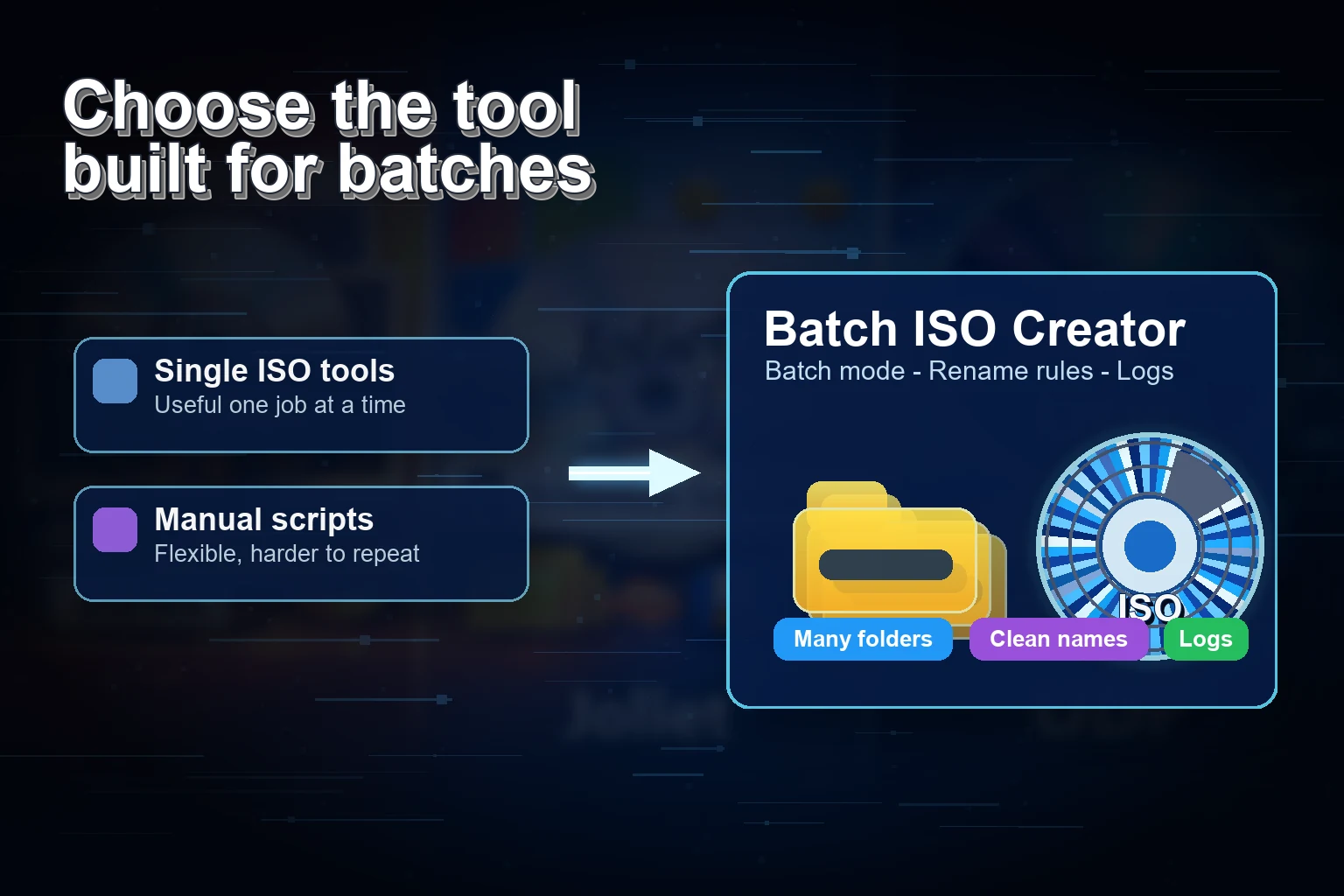
If you only need to create one ISO image today, almost any familiar utility can get you there. PowerISO can build an image from local files and folders. ImgBurn has a detailed Build mode. AnyToISO can create an ISO from a folder and also convert many image formats. Folder2ISO is tiny and focused. ISO Workshop covers creation, conversion, burning, and disc copying in one desktop app.
Those are real strengths. But they are not the whole buying decision.
The people who get the most value from Batch ISO Creator are usually not asking, "Can this make an ISO once?" They are asking, "Can I process a whole folder set without babysitting it, keep the output names consistent, see what happened, and do the same job again next month without rebuilding my process from scratch?"
Quick verdict: If your job is Windows folders to ISO files in bulk, Batch ISO Creator is the practical choice. It is purpose-built for batch folder-to-ISO creation, rename rules, drag-and-drop setup, detailed logs, and clean repeatable output. General ISO suites are still useful for editing, burning, or format conversion. Batch ISO Creator wins when the job is production-style folder packaging.
What Actually Matters in a Folder-to-ISO Converter
A folder-to-ISO tool is easy to judge incorrectly because the first test is usually tiny: choose a folder, choose a destination, click a button, see if an ISO appears. That tells you the tool works. It does not tell you whether it will survive a real archive, lab, software distribution, or backup workflow.
For commercial Windows users, the best tool is the one that protects your time and reduces mistakes. That means the evaluation should be weighted toward repeatability, naming, visibility, and batch throughput. A beautiful ISO editor that is excellent for one file can still feel slow if you need one ISO per subfolder. A classic disc burning tool can be extremely capable while still making you repeat the same setup again and again.
Batch-first design
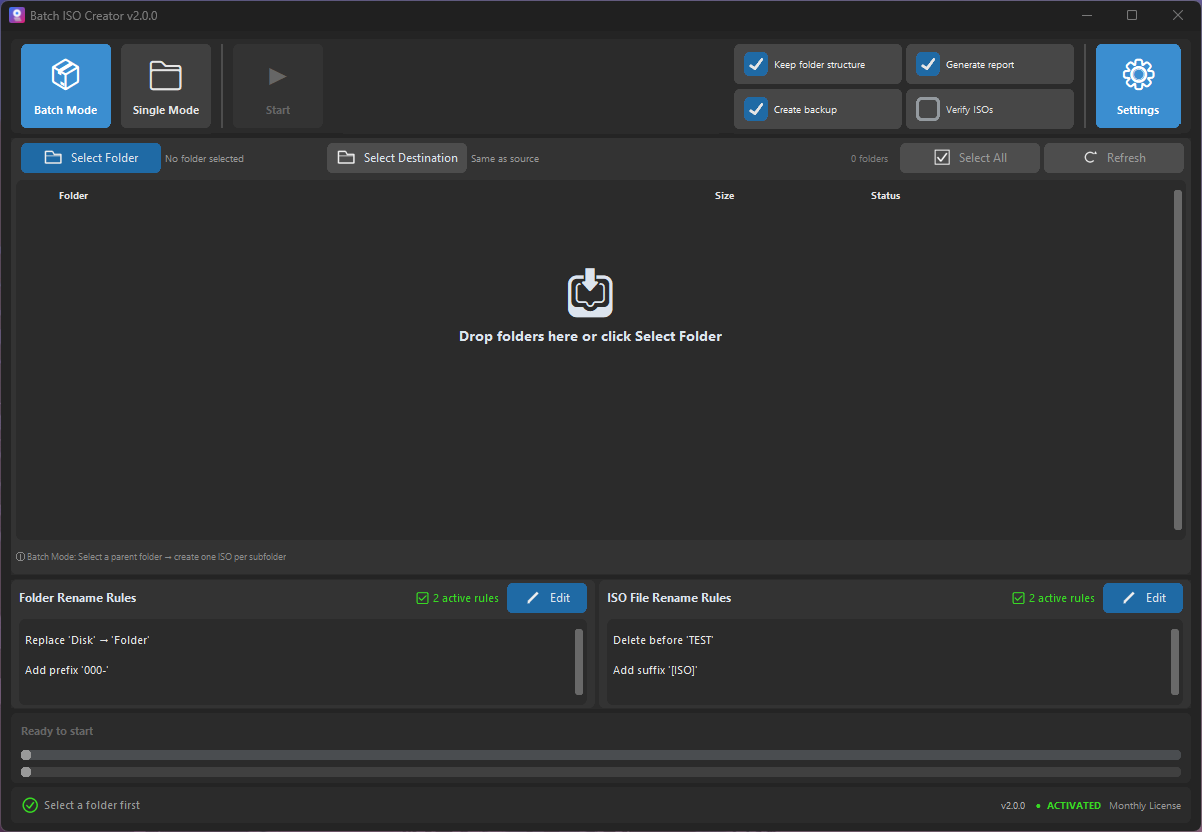
One parent directory can contain many project folders, course folders, installer folders, ROM folders, or backup sets. Each folder should become its own ISO without a manual ritual.
Filename control
ISO projects often fail at the boring layer: inconsistent names, too-long names, strange characters, and output files that are hard to search later.
Logs and confidence
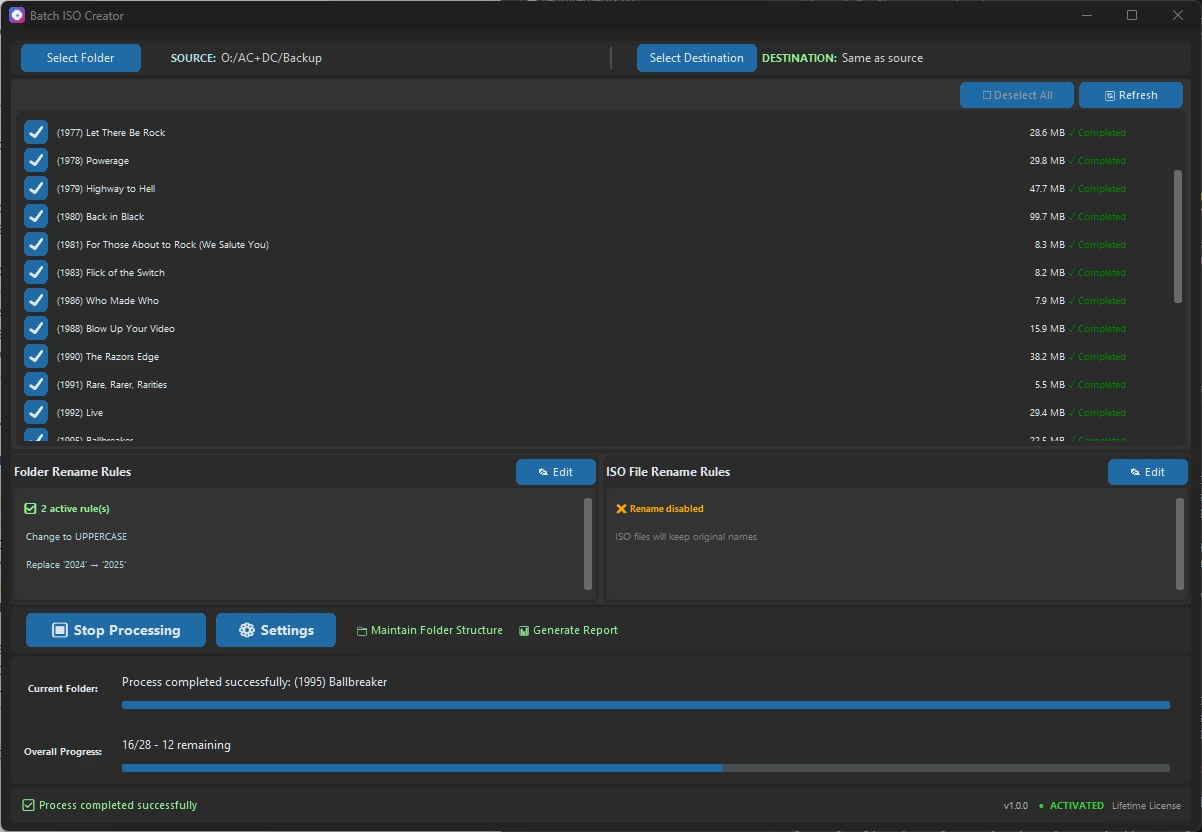
When a batch finishes, you should know what succeeded, what failed, and where to look. A silent output folder is not enough for serious work.
ISO mounting and library
Mount a single ISO for free when you need to inspect it, or use ISO Library with a license to keep ISO files organized. Batch creation and rename rules remain the core workflow.
Batch ISO Creator is built around exactly those points. It is not trying to be a full disc-burning suite, a macOS utility, or a universal image converter. That focus is an advantage when the task is specific: create many standard ISO files from Windows folders, keep the names clean, and document the run.
Folder-to-ISO Converter Comparison
This table deliberately compares the features that matter for bulk Windows folder packaging. It is not a generic "which ISO app has the longest feature list" table. If you are choosing a tool for a repeatable folder-to-ISO workflow, these are the columns that change your day.
| Tool | Best fit | Batch folder workflow | Naming and cleanup | Run visibility | Commercial takeaway |
|---|---|---|---|---|---|
| Batch ISO Creator | Many Windows folders to many ISO files | Built around batch processing | Rename rules, regex, case cleanup, prefixes, suffixes | Progress, logs, reports, per-job feedback | Best choice for repeatable bulk folder-to-ISO work, with free ISO mounting and licensed ISO Library as useful extras |
| Folder2ISO | Small, portable folder-to-ISO jobs | Good for focused folder jobs and command-line use | Best when source names are already clean | Simple workflow | Great lightweight option; Batch ISO Creator is smoother for polished Windows batch output |
| AnyToISO | Format conversion and single folder ISO creation | Useful when converting different image/archive formats | Best when the output is straightforward | Simple conversion flow | Excellent utility; Batch ISO Creator is more direct for many folders at once |
| ImgBurn | Disc authoring, burning, detailed ISO build options | Powerful manual Build mode | Detailed filesystem options | Detailed technical feedback | Strong classic tool; Batch ISO Creator is faster for no-script folder batches |
| PowerISO | General image creation and editing | Flexible file/folder compilation | Manual project-level control | Progress during image creation | Good suite; Batch ISO Creator keeps bulk folder jobs more repeatable |
| ISO Workshop | ISO management, conversion, burning, disc copying | Friendly desktop workflow | Best for straightforward projects | Clean guided interface | Nice general-purpose app; Batch ISO Creator is more specialized for bulk output |
| WinCDEmu | Mounting images and quick context-menu ISO creation | Convenient when working from Explorer | Best for quick one-off images | Minimal by design | Useful companion tool; Batch ISO Creator is the production workflow |
Why Batch Changes the Decision
The moment you have more than a handful of folders, the job stops being about ISO creation and becomes about workflow control. That is where purpose-built software starts to matter.
Imagine an IT admin preparing offline installer archives for twenty classrooms. Or a developer packaging old release folders into standard ISO images users can open with their own tools. Or a collector cleaning a library where each folder should become a searchable ISO with the same naming convention. The hard part is not pressing "create ISO." The hard part is doing it consistently, seeing mistakes early, and not losing half a day to clicks.
- Choose the parent folder. Put the folders you want to package under one source directory. Batch ISO Creator treats each folder as a job, so the structure maps naturally to the output.
- Set the output destination. Keep generated ISO files in a predictable location instead of mixing them with source files.
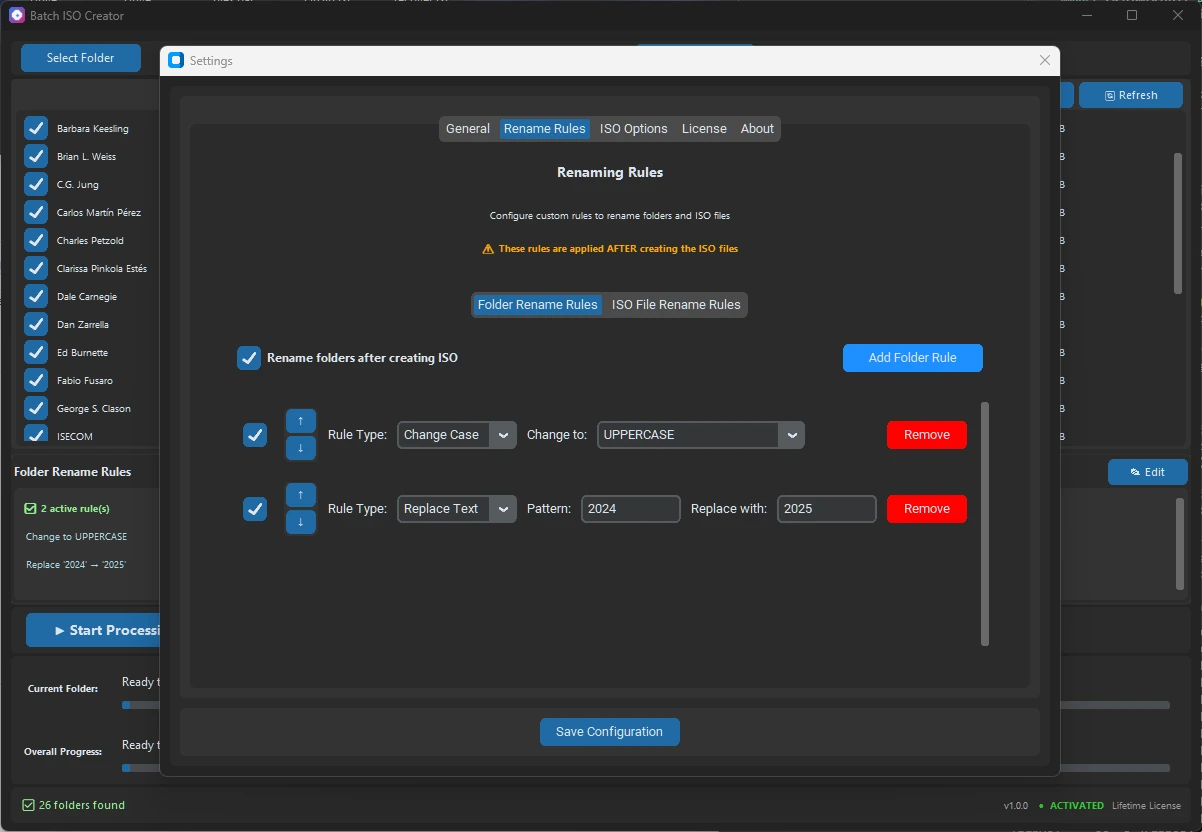
- Apply naming rules. Standardize casing, remove awkward characters, replace patterns, add prefixes or suffixes, and avoid messy output names.
- Run the batch and review the log. Watch progress while the app works, then keep the report as proof of what was created.
Who Should Use Batch ISO Creator?
Batch ISO Creator is strongest when the work has volume. It is especially useful when an ISO is not just a file but a deliverable: something you will store, share internally, audit, open with another ISO tool, or reproduce later.
It is also a strong fit for software vendors preparing offline bundles, teachers distributing course material, retro-computing users organizing folder-based collections, and anyone who has learned that "just zip it" is not always the right long-term format.
Pricing and ROI
Batch ISO Creator is priced for people who value their time. Free mode covers ISO Mounting and 1 ISO per app session. During the Special Anniversary Promo, paid plans are simple: $2.99 monthly, $19.99 annually, and $59.99 lifetime. A license unlocks unlimited creation and ISO Library, so the buying decision is mostly about how often you expect to use it.
| Plan | Best for | Why it makes sense |
|---|---|---|
| Monthly, $2.99 | One project, short-term cleanup, client work | Cheap way to finish a batch ISO job without committing long term. |
| Annual, $19.99 | Regular archives, IT maintenance, recurring releases | Best fit if ISO creation comes back throughout the year. |
| Lifetime, $59.99 | Power users and teams who want the tool ready permanently | One-time purchase for the people who know folder packaging will keep coming back. |
Turn Folder-to-ISO Work into a Repeatable System
Download Batch ISO Creator, point it at your folder set, apply your naming rules, and generate clean ISO files with logs. It is the difference between "I need to make a bunch of ISOs" and "I have a process for this."
FAQ
Can Batch ISO Creator convert multiple folders to ISO files at once?
Yes. That is the main reason to choose it. Batch ISO Creator is designed so each folder can become its own ISO file in a single workflow.
Does it help with messy filenames?
Yes. Rename rules are one of the strongest selling points. You can standardize case, replace text, use regex, and add prefixes or suffixes before generating the final ISO files.
Is this better than a free ISO tool?
For one quick ISO or ISO mounting, Batch ISO Creator already includes a free mode. For repeated Windows folder-to-ISO work, it earns its keep by reducing manual steps, keeping names consistent, adding ISO Library, and giving you logs and reports.
Can I still use other tools alongside it?
Absolutely. Many users keep tools like ImgBurn, WinCDEmu, PowerISO, or AnyToISO for their specialty tasks. Batch ISO Creator now includes basic free ISO Mounting, while dedicated tools can still make sense for specialized editing, burning, or virtual-drive workflows.
Research Notes
This guide was checked against current official product pages and documentation for Folder2ISO, TrustFm Folder2Iso, AnyToISO, ImgBurn, PowerISO, ISO Workshop, and WinCDEmu.