Online Folder to ISO Converter vs Local Windows Tool
Online converters can be useful for tiny one-off folders. A local Windows folder-to-ISO tool is the safer fit when the job is private, large, repeated, or needs clean batch output.
Searching for an online folder to ISO converter usually means you want the fastest possible answer: select a folder, get an ISO file, move on. That can be reasonable when the folder is small, non-sensitive, and you only need one quick archive. The problem starts when the job becomes larger than the upload form.
Folder-to-ISO work often includes installers, driver packs, project folders, client deliverables, course modules, or internal archive sets. Those folders can be large, private, messy, and repeated over time. In that situation, a local Windows workflow is easier to control because the files stay on the PC and the output can be reviewed before it becomes part of an archive or handoff.
Short answer: use an online converter for a tiny, non-sensitive, one-time folder. Use a local Windows folder-to-ISO tool when the folders are private, large, repeated, need clean names, or must be created in batches with logs and reports.
What changes when the job runs online
An online converter changes the workflow before ISO creation even starts. The folder has to be prepared for upload, transferred through the browser, processed elsewhere, then downloaded again. That is fine for a small test folder, but it becomes friction when the source has many files, nested paths, or content you would rather keep off third-party servers.
Upload time is only part of the issue. If a browser session fails, a size limit appears, or the finished ISO needs a different name, the process often becomes manual again. You may also lose the simple audit trail that helps you remember which folder became which ISO and which settings were used.
Where an online folder-to-ISO converter can fit
Online tools are useful when convenience matters more than repeatability. A small public sample folder, a one-time test, or a folder that contains nothing private can be a reasonable online job. You do not install software, you do not configure much, and the result can be quick if the folder is small.
That fit narrows when the source folder includes licensed installers, customer material, internal documents, release builds, or long-term archives. Even when the online tool works, the workflow may be hard to repeat consistently across ten, fifty, or hundreds of source folders.
Where a local Windows tool wins
A local tool wins when folder-to-ISO creation is real work instead of a one-off task. Local processing keeps the source folder on your PC. It also lets you run the same workflow again tomorrow without uploading the folder set from scratch.
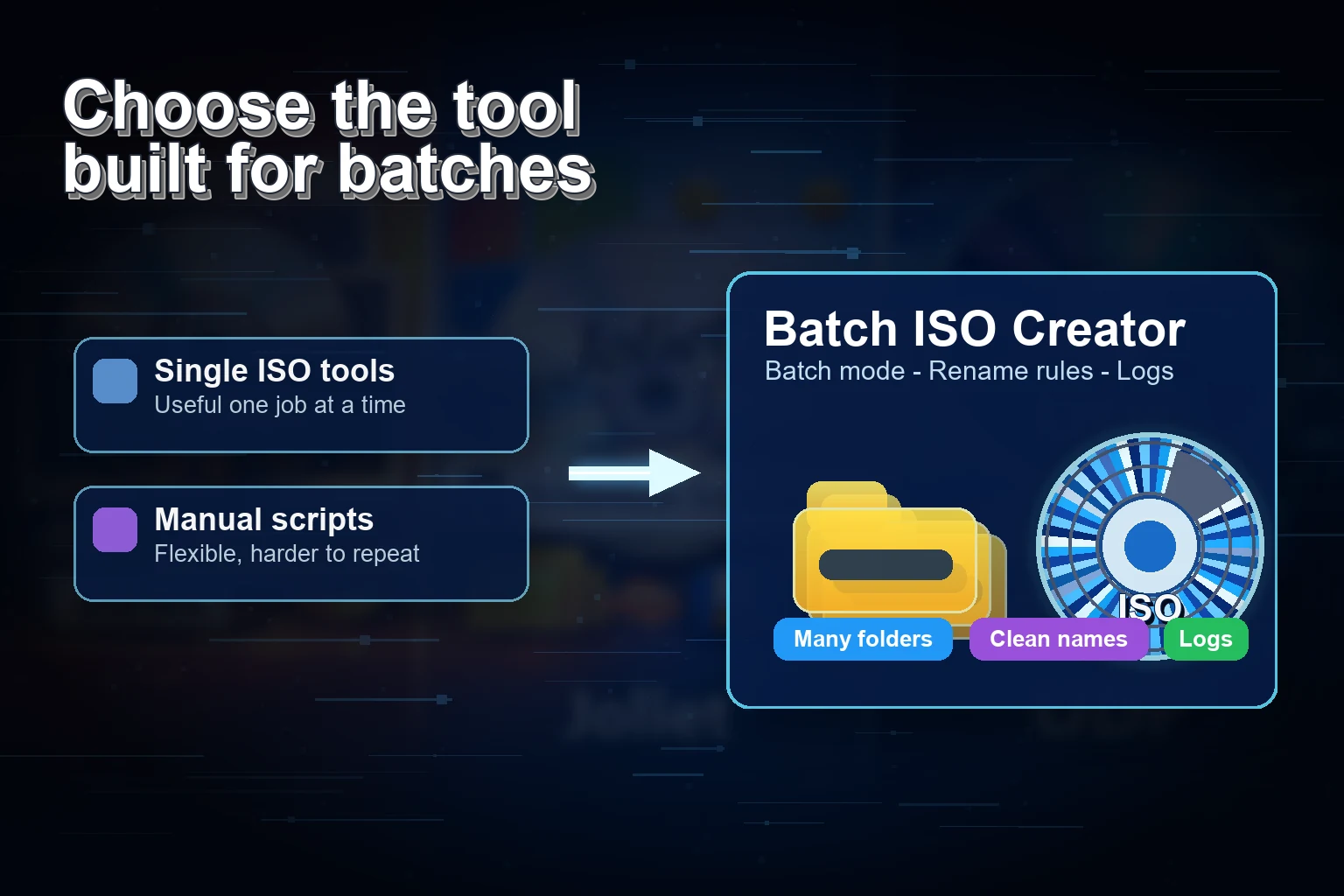
Batch ISO Creator is built for Windows 10/11 folder-to-ISO work. Current product sources describe local ISO processing on the PC, Batch Mode, Folder Mode, drag and drop, renaming rules for folders and ISO files, progress tracking, logs, operation reports, free ISO Mounting, and ISO Library organization for licensed workflows.
| Decision point | Online converter | Local Windows tool |
|---|---|---|
| Small one-off folder | Convenient if the content is not sensitive | Still works, but may be more setup than needed |
| Private or client files | Requires uploading source content | Keeps ISO processing on the PC |
| Large nested folders | Upload limits and browser failures can interrupt the job | Works directly from local storage |
| Many folders to many ISOs | Often turns into repeated manual uploads | Batch Mode is built for repeatable output |
| Clean output names | Usually handled before upload or after download | Rename rules can run before output is finalized |
| Review and handoff | Depends on manual notes | Logs, reports, and mounting help verify the result |
Use the risk level to choose
The easiest decision rule is to classify the folder before choosing the tool. If the folder is public, small, and disposable, an online converter can be enough. If the folder is private, large, or part of a repeatable workflow, keep it local.
For business or technical work, also consider the cost of a mistake. If an ISO gets the wrong name, misses a folder, or cannot be checked before delivery, someone has to rerun the job. That is why rename rules, progress, logs, reports, and a quick mount check matter more as volume increases.
A practical local workflow
- Prepare the source folder. Remove temporary files, old downloads, duplicate names, and folders that should not be archived.
- Choose the right mode. Use Folder Mode for selected folders or a controlled test. Use Batch Mode when a parent folder contains many subfolders that should each become an ISO.
- Set naming rules before output. Clean casing, prefixes, suffixes, repeated words, or numbering before the ISO file is created.
- Create a test ISO. Mount it, inspect the folder tree, and confirm that names and structure are readable.
- Run the batch only after the test passes. Keep the output folder separate from the source folder so finished ISO files do not get mixed into later runs.
- Save the report. The report gives the handoff or archive a record of what was processed.
Common mistakes
The first mistake is choosing an online tool just because it looks faster. It may be faster for one tiny folder, but slower for a large source set that has to upload, fail, retry, download, rename, and be checked manually.
The second mistake is treating ISO creation as the only task. The real workflow includes source cleanup, output naming, destination choice, creation, verification, and handoff. A local tool can support more of that workflow in one place.
The third mistake is skipping a mount check. Whether the ISO was created online or locally, the mounted ISO is the result users will see. Open it, inspect the structure, and confirm the names before you archive or deliver it.
Keep Folder-to-ISO Work Local and Repeatable
Use Batch ISO Creator when Windows folder archives need local processing, Batch Mode, Folder Mode, rename rules, logs, reports, and a quick way to mount and review finished ISO files.
FAQ
Is an online folder to ISO converter enough for a quick job?
It can be enough for a tiny, non-sensitive one-off folder when upload time and file limits are not a problem. A local Windows tool is better for private files, large folders, repeated output, or batch jobs.
Why choose a local folder-to-ISO tool on Windows?
A local tool keeps ISO processing on the PC and is easier to trust for large folders, repeatable batch output, rename rules, logs, reports, and post-creation checks.
Can Batch ISO Creator process many folders?
Yes. Batch ISO Creator supports Batch Mode for creating one ISO per folder, Folder Mode for selected folders, drag and drop, rename rules, progress tracking, logs, operation reports, ISO Mounting, and ISO Library organization.