How to Check ISO Files After Creation on Windows
A practical checklist for mounting a new ISO, reviewing its contents, and catching naming or delivery mistakes before the file leaves your PC.
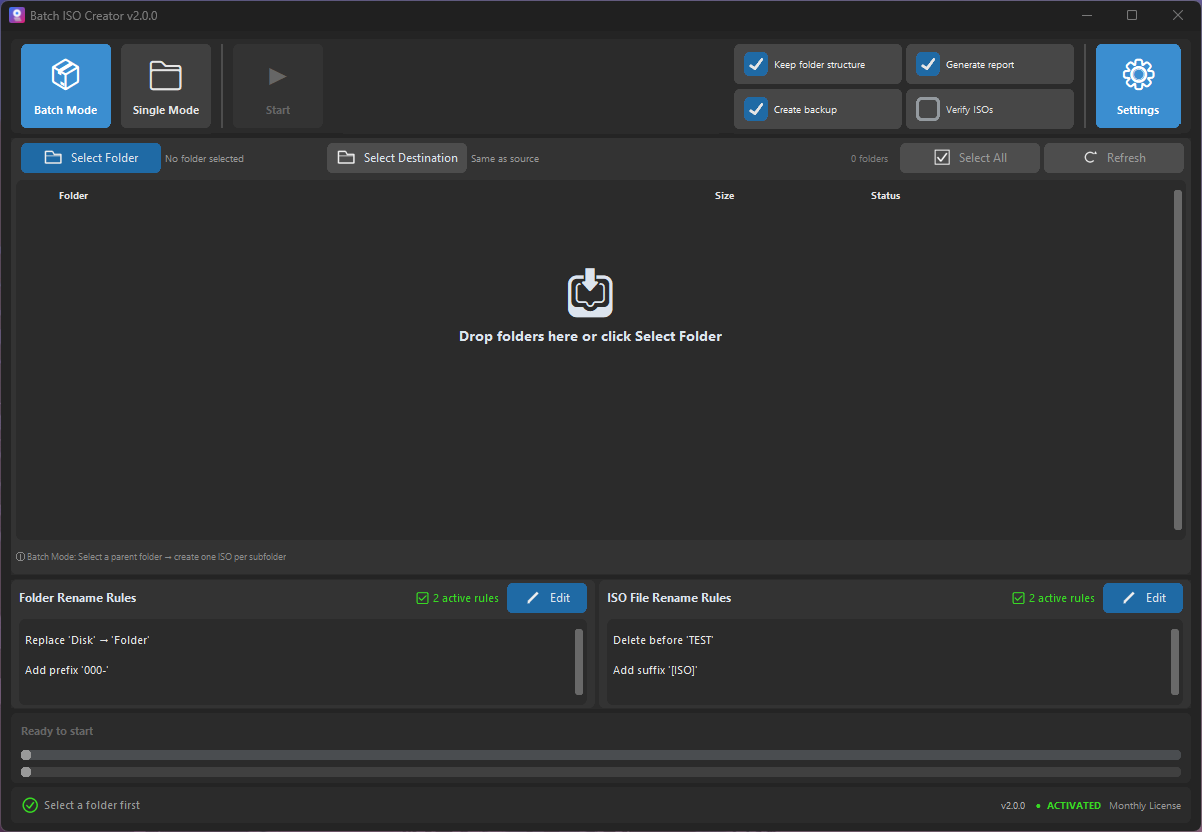
Creating the ISO is only half of the job. The useful question after creation is simple: if someone mounts this image tomorrow, will the folder structure, file names, labels, and documentation still make sense?
That check matters most when ISO files become client deliverables, training kits, driver packs, release bundles, or long-term archives. A file can exist and still be wrong: the top folder may be missing, long names may have been shortened, the destination may contain an older output, or the report may be separated from the ISO it describes.
Short answer: mount the ISO, inspect the virtual drive, compare the visible structure with the source folder, review the names, and keep the report or log next to the final output. If anything is wrong, fix the source folder or settings and rebuild the ISO instead of trying to edit the image afterward.
Start with a mounted inspection
Mounting is the cleanest first check because it shows the ISO the way another Windows user is likely to browse it. You are not editing the image; you are opening it as a virtual drive and looking at the result.
Batch ISO Creator includes free ISO Mounting, so this inspection step does not need a separate paid workflow. Mount the ISO, open it, and verify the result before you move it into an archive, upload it, or send it to someone else.
- Mount the ISO. Open the newly created image as a virtual drive.
- Check the top level. Confirm whether the ISO starts with the expected folder, files, or project layout.
- Open one or two deep paths. Long nested folders are where naming and compatibility mistakes usually show up first.
- Compare visible names. Look for truncated names, wrong prefixes, missing version numbers, or duplicate-looking files.
- Unmount when done. Close the inspection step before moving or replacing the ISO file.
What to check before sharing the ISO
A useful ISO check is not just "does the file open?" It should answer the common failure points that make a folder-to-ISO job expensive to repeat later.
| Check | Why it matters | What to do if it fails |
|---|---|---|
| Top-level structure | The recipient needs to find the expected files quickly. | Fix the source folder layout and rebuild. |
| File and folder names | Long or messy names can become hard to read after creation. | Use rename rules before creating the next ISO. |
| Destination folder | Old and new outputs can be confused when names are similar. | Clean the output folder or add clearer naming. |
| Report or log | Batch work needs evidence of what ran and where output went. | Keep the report with the ISO set. |
| Settings choice | ISO 9660, Joliet, Joliet Long, and Rock Ridge choices affect compatibility. | Adjust settings and rebuild a small test first. |
Use reports as the second layer
Mounting tells you what is inside the image. Reports and logs help you understand how the image was produced. That distinction matters when you create several ISOs in one run or when the output needs to be reviewed by someone who did not run the job.
For batch work, keep the report near the ISO files. The report can help confirm output names, destination paths, and errors without reopening every folder. If the job is client-facing, a small report folder can save time when someone asks which source folders were processed.
For a deeper reporting workflow, see how to use ISO reports for batch jobs.
Check names before you blame the ISO
When a mounted ISO looks wrong, the root cause is often naming rather than creation. A folder may contain copied labels, inconsistent separators, accidental suffixes, or file names that are too long for the compatibility settings you chose.
Batch ISO Creator supports renaming rules for folders and ISO files, including case conversion, pattern support, prefix, suffix, insert, delete, and serialization. Serialization can number folder and ISO names at the beginning, end, or a specific position while keeping numbering synchronized when the processing list changes.
Use those rules before rebuilding. If the issue is long Windows names, also review Windows ISO file name rules and Joliet Long for Windows ISO file names.
When to run a small test ISO first
A small test is worth it when the folder set is large, the naming rules are new, or the destination is shared with previous output. Free mode allows 1 ISO creation per app session, which is enough to validate the shape of a single folder-to-ISO job before deciding whether the full batch needs unlimited creation.
Use Folder Mode for a controlled one-folder check. Use Batch Mode when the real job is one ISO per subfolder or a long list of folders that should follow the same setup. The check after creation stays the same: mount, inspect, review names, and keep the report.
Post-creation checklist
Use this checklist before an ISO becomes a deliverable or archive item:
- Mount the ISO and open the virtual drive.
- Confirm the top-level folder structure is intentional.
- Open a deep folder path and scan for missing or shortened names.
- Check whether the ISO file name matches the project, version, or folder rule you intended.
- Confirm the output folder does not contain stale copies with similar names.
- Review the report or log for errors, warnings, and destination paths.
- Unmount the ISO before moving, replacing, or archiving it.
What checking an ISO does not mean
Checking an ISO is not ISO editing, disc burning, bootable media creation, cloud sync, compression, encryption, or malware scanning. It is a verification step. If the mounted result is wrong, rebuild from the corrected source folder and settings.
That discipline keeps the workflow predictable. Create from the source folder, inspect the mounted output, and keep the evidence needed to repeat or explain the job later.
Check and Rebuild ISO Files with Less Guesswork
Download Batch ISO Creator to mount ISO files for free, create a one-ISO test, and use Folder Mode or Batch Mode when Windows folder-to-ISO work needs repeatable output, rename rules, logs, and reports.
FAQ
How do I check an ISO after creating it?
Mount the ISO, open it as a virtual drive, inspect the folder structure, confirm names and labels, and keep the operation report or log with the output.
Does checking an ISO mean editing it?
No. Mounting and checking are inspection steps. If the contents are wrong, rebuild the ISO from the corrected source folder.
Can Batch ISO Creator mount ISO files for free?
Yes. ISO Mounting is free in Batch ISO Creator. A license unlocks unlimited ISO creation and ISO Library.