Batch ISO Workflow for Small Business Backups
A low-pressure buying guide for businesses that need organized folder archives without enterprise backup complexity.
Batch ISO Workflow for Small Business Backups is about turning important business folders into organized ISO backup packages. It is written for small teams, solo consultants, agencies, and office administrators, especially when business folders need archiving discipline without a heavy backup platform.
Batch ISO Creator is strongest when ISO creation is not just a one-time file operation. The app combines batch folder-to-ISO creation with naming rules, destination options, ISO compatibility settings, progress feedback, and reports. That combination is what turns a visitor who is researching into someone who can imagine using the app today.
Workflow: turning important business folders into organized ISO backup packages. The two core strengths stay the same: creating ISO files in batch and using rename rules to clean folder and ISO names.
Why this workflow converts better than a generic ISO task
A generic ISO utility can create an image, but repeated folder packaging has different friction. The slow parts are selection, naming, destination cleanup, checking the result, and explaining later what happened. Batch ISO Creator keeps those details inside one Windows workflow.
| Need | What to configure | Why it helps |
|---|---|---|
| Batch output | Batch Mode / Folder Mode | Less repeated setup |
| Clean names | Folder and ISO rename rules | Less manual cleanup |
| Reviewable result | Reports and progress | More confidence after the run |
| Compatibility | UDF, Joliet, Rock Ridge, ISO level | Better fit for Windows, VMs, and archives |
How Batch ISO Creator handles it
- Prepare the source folder set before opening the app.
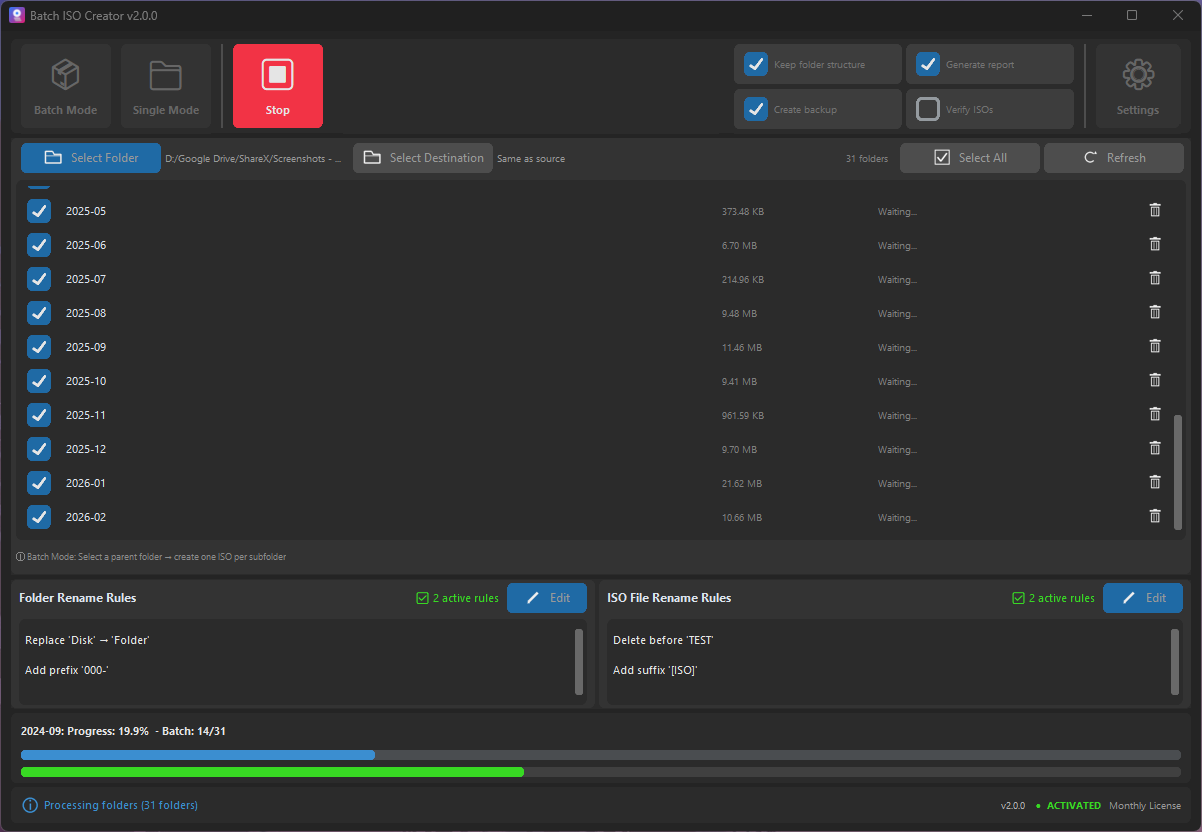
- Choose Folder Mode for a one-folder test or Batch Mode for a parent folder full of jobs.
- Set the destination path and decide whether to maintain folder structure.
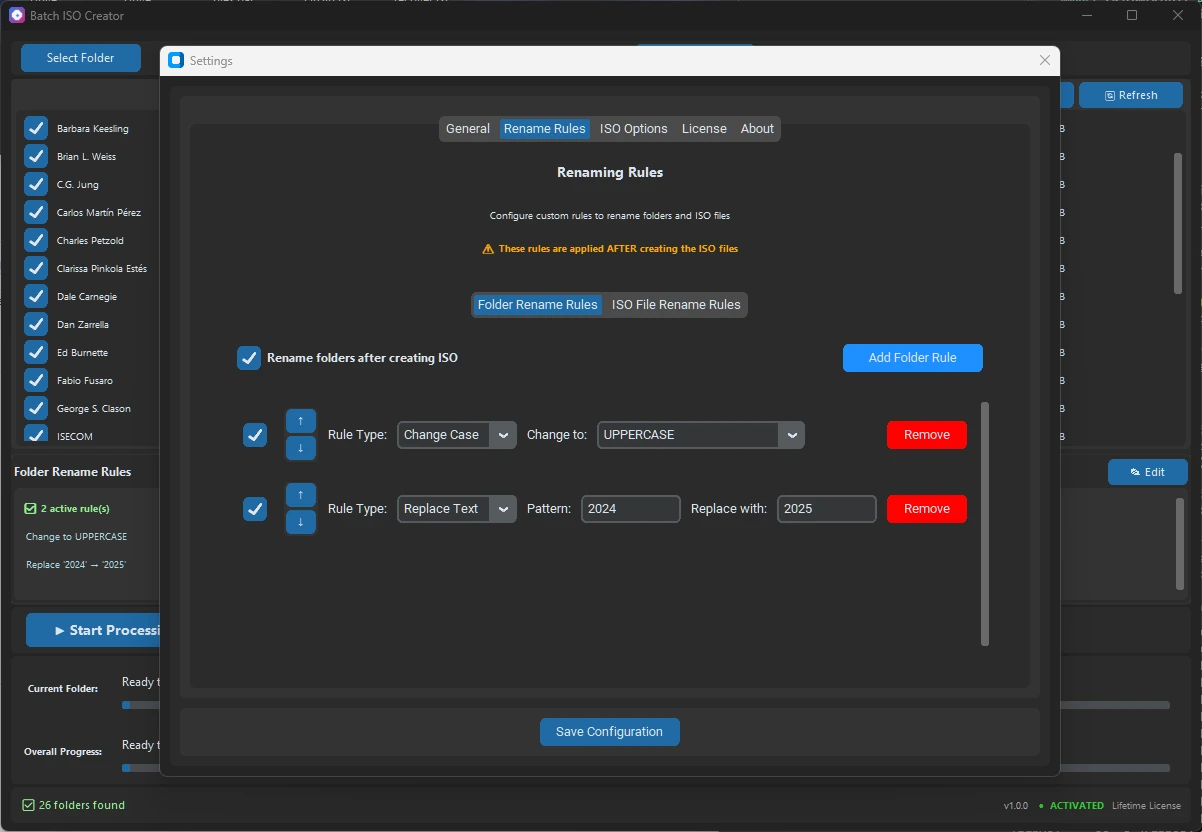
- Apply rename rules for folders, ISO files, or both.
- Run a small test, check the ISO, then process the full batch.
- Keep the generated report with the output if the ISO files are deliverables.
Where rename rules create the sales difference
Rename rules are not a decorative feature. They solve the part users normally do by hand after the ISO files are created. Batch ISO Creator supports separate rules for folders and ISO files, plus rule types such as Replace Text, Remove Text, Regular Expression, Change Case, Add Prefix, Add Suffix, Insert, and Delete.
That means the app can handle simple cleanup such as spaces to underscores, and more advanced cleanup such as regex-based removal of version tags, copied labels, or inconsistent separators.
Example output
Before
Invoices 2026 May
Client Projects Q2
Office Software Keys

After
INVOICES_2026_05.iso
CLIENT_PROJECTS_Q2.iso
OFFICE_SOFTWARE_KEYS.iso
Practical checklist
Before running a large batch, confirm the source folders are self-contained, choose the destination behavior, enable report generation, decide whether verification is worth the extra time, and test one or two folders first. Once the sample output looks right, run the full batch.
When a license makes sense
Free mode is useful for quick checks: mount ISO images and create 1 ISO per app session. A license makes sense when the real cost is repetition: many folders, messy names, output that must be reviewed, or deliverables that someone else will open later. Monthly works for one project, while annual or lifetime pricing makes more sense when folder-to-ISO work comes back regularly.
Make This Folder-to-ISO Workflow Repeatable
Use Batch ISO Creator when the job needs batch ISO creation, detailed rename rules for folders and ISO files, progress, destination control, verification options, and reports.
FAQ
Can Batch ISO Creator help with this workflow?
Yes. Batch ISO Creator is built for folder-to-ISO work on Windows, especially when you need Batch Mode, Folder Mode, rename rules, progress, and reports.
Do rename rules apply to folders and ISO files?
Yes. The app separates Folder Rename Rules and ISO File Rename Rules, so you can decide which layer should be cleaned and how.
Is this only for advanced users?
No. You can start with drag and drop, Folder Mode, or Batch Mode, then add rename rules and verification when the job needs more control.