Free ISO Mounting on Windows with Batch ISO Creator
Mount, open, and unmount ISO files for free, then keep the same Windows workflow ready when a folder needs to become an ISO.
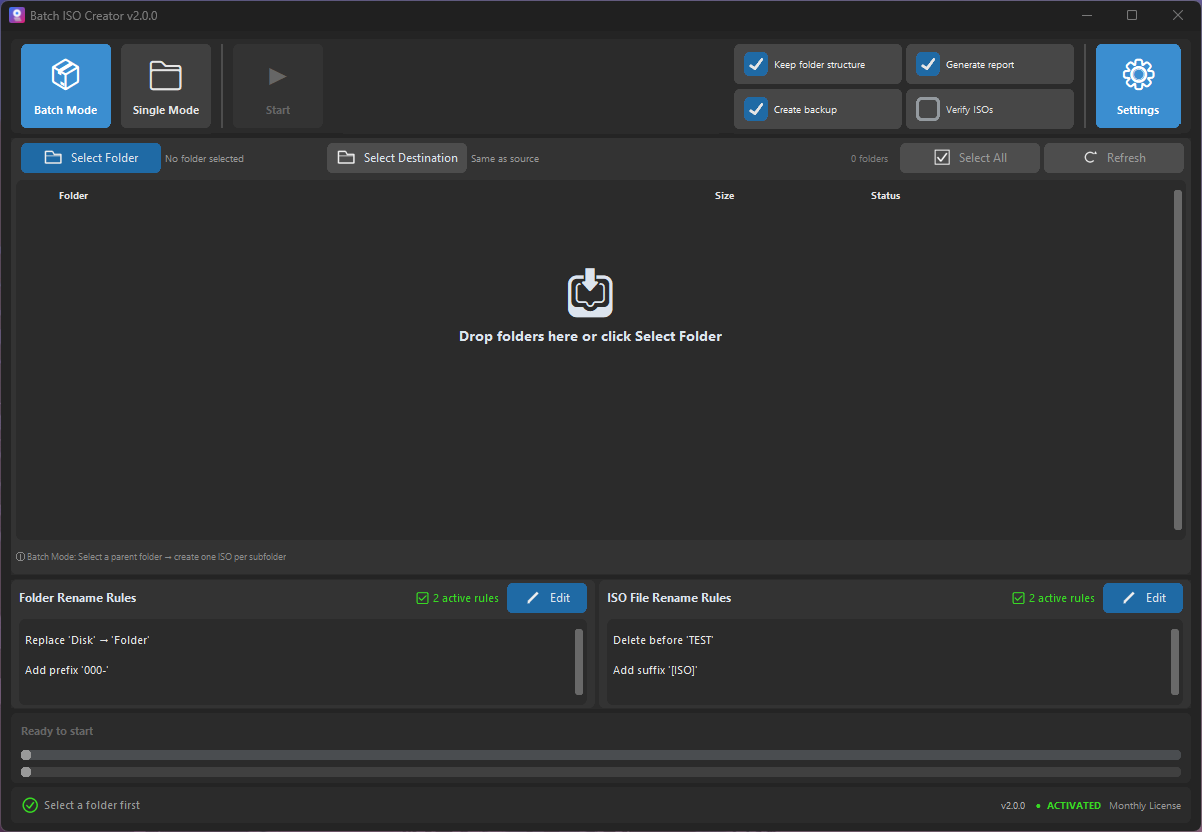
ISO mounting is the simple part of many ISO workflows: open an ISO image as a virtual drive, inspect the files, then unmount it when you are done. Batch ISO Creator includes that utility for free, so you can mount, open, and unmount ISO images without starting a paid workflow.
The important distinction is that mounting and creating are different jobs. Mounting helps you inspect an ISO. Creating turns a folder into a new ISO file. Batch ISO Creator keeps both close together for Windows users who need to check an image and then decide whether a folder-to-ISO job needs more control.
Short answer: use Free ISO Mounting when you need to inspect an ISO image. Use Folder Mode or Batch Mode when you need to create ISO files from folders, rename outputs, track progress, or repeat the job across many folders.
What ISO mounting means on Windows
When you mount an ISO, Windows treats the image like a drive that can be opened and browsed. That is useful for checking archived files, looking at a software bundle, confirming a training kit, or verifying that a newly created ISO contains the structure you expected.
Mounting does not rewrite the ISO. It is an inspection step. If the image needs to be rebuilt, renamed, or recreated from a source folder, that belongs to the creation workflow, not the mount step.
| Action | What it does | Where Batch ISO Creator fits |
|---|---|---|
| Mount an ISO | Opens the image as a virtual drive | Free ISO Mounting |
| Open a mounted ISO | Lets you browse the mounted contents | Free ISO Mounting |
| Unmount an ISO | Closes the virtual drive when done | Free ISO Mounting |
| Create one ISO | Builds a new ISO from a folder | Free mode allows 1 ISO per app session |
| Create many ISOs | Turns many folders into repeatable outputs | Licensed workflow unlocks unlimited ISO creation |
What Batch ISO Creator lets you do for free
Batch ISO Creator free mode covers two practical jobs. First, ISO Mounting is free: mount, open, and unmount ISO images. Second, ISO creation can be tested with 1 ISO per app session. That gives you enough room to inspect existing ISO files and try a small folder-to-ISO result before deciding whether a larger batch workflow is needed.
This is useful for Windows users who do not want a separate tool for every step. You can inspect an ISO, create a test ISO from a folder, mount the result, and decide whether the real job is still a one-off or has become a repeatable batch process.
When to mount before creating an ISO
Mount an ISO before creation when you are trying to copy or reproduce a known structure. For example, you might have an older archive image and want a new folder to follow the same layout. Mounting the old image gives you a quick reference without changing it.
It also helps when a team sends you an ISO and asks for a revised version from updated source folders. Mount the old image, compare the structure, then build the replacement from the updated folder rather than guessing what the final image should contain.
- Mount the reference ISO. Open the image and review folder depth, naming, and top-level structure.
- Prepare the source folder. Match the structure you actually want in the new ISO.
- Create a test ISO. Free mode can create 1 ISO per app session, which is enough to confirm the shape of a small job.
- Mount the new ISO. Inspect the output before sharing, archiving, or scaling the run.
- Switch to batch creation when repeated. If many folders need the same treatment, use the licensed workflow for unlimited creation.
When to mount after creating an ISO
Mounting after creation is a quality-control step. It answers the practical question: what will someone see when they open this ISO? That matters for client deliverables, training labs, driver packs, release folders, and backups where the ISO is only useful if the contents are easy to inspect later.
Because ISO Mounting is free, you can use it even when you are only checking one image. The app does not need to turn every inspection into a paid operation. The paid side is for unlimited ISO creation and ISO Library, not for basic mounting.
Mounting versus creating an ISO
Confusing these two jobs leads to bad tool choices. A mounting tool is enough when you only need to open an existing ISO. A creator matters when you need to build a new ISO from a folder. A batch creator matters when the task repeats across many folders and you care about naming, progress, logs, and reports.
| Need | Best fit | Reason |
|---|---|---|
| Open one ISO to inspect files | Free ISO Mounting | No new ISO is being created. |
| Check a freshly created image | Free ISO Mounting | Mounting confirms the final structure. |
| Create one ISO from a folder | Free mode test | Free mode allows 1 ISO per app session. |
| Create one ISO per subfolder | Batch Mode with license | Unlimited creation removes the manual loop. |
| Keep returning to a collection | ISO Library with license | The library is for ongoing ISO organization. |
How rename rules fit into the workflow
Mounting helps you see content. Rename rules help before output is created. Batch ISO Creator supports rules for folder and ISO names, including case conversion, pattern support, prefix, suffix, insert, delete, and serialization.
Serialization is especially useful when a list changes. It can number folder and ISO names at the beginning, end, or a specific position, while keeping numbering synchronized when the processing list changes. That detail matters when the final mounted ISO set needs names that stay consistent after folders are added or removed.
What free ISO mounting does not do
Free ISO Mounting is not ISO editing, disc burning, bootable media creation, cloud sync, or a replacement for a full disc authoring suite. It is a focused inspection workflow for ISO images on Windows.
That focus keeps the decision clear. Mount when you need to inspect. Create when a folder needs to become an ISO. Batch-create when many folders need repeatable output. Use the license when the time saved by unlimited creation and ISO Library is the point of the job.
Mount and Check ISO Files for Free
Download Batch ISO Creator to mount, open, and unmount ISO images for free on Windows. When folder-to-ISO work grows beyond one test image, use the full workflow for unlimited creation and ISO Library.
FAQ
Is ISO mounting free in Batch ISO Creator?
Yes. Free ISO Mounting lets you mount, open, and unmount ISO images for free on Windows.
Do I need a license to mount ISO files?
No. Mounting ISO files is free. A license unlocks unlimited ISO creation and ISO Library.
Does mounting edit the ISO file?
No. Mounting lets you inspect or open the ISO contents. Batch ISO Creator does not claim ISO editing.